How to download your photos
Example of Busy Bee Photography Watermark
HOW TO DOWNLOAD YOUR PHOTOS
FAMILY & NEWBORN SESSIONS
- To begin simply type or copy and paste the link provided to you into your browser. You will see one large photo with the name of your gallery on the image. Upon scrolling down you will see your images. You can click the images to enlarge them and then toggle through. The images will have a watermark on them, which will automatically disappear upon download. Example of the watermark above.
- As you are scrolling through your photos set a favourites list by clicking the heart at the top right of the enlarged photo. The website will ask for your email so you can visit your favourites once you've gone through your album.
- Once you've gone through your album return to the main screen and then click on the shopping cart, then click Browse Products.
- Click Single Photo Add-On, then buy downloads. The session you initially purchased will come with an allotted amount of photos and once your photos are ready, I will give you a coupon code for the allotted amount. Should you wish for more photos, you may purchase them at an additional cost.
- Switch from ALL PHOTOS album, to MY FAVORITES album and select which photos you would like to download; click next.
- Review your photo selection and click ADD TO CART. Your shopping cart will show you your total amount BEFORE the applied coupon I supplied you with. Click Proceed to checkout.
- Now is where you add the coupon code. On the Order Summary page click *APPLY COUPON, and enter your personalized code.
- Enter in your information and click next, and then Place order.
- You will receive an email shortly confirming your order and a link to download your selected photos.
- To download your photos from the email, click download photos. Then click the zip file to start the download.
WEDDINGS
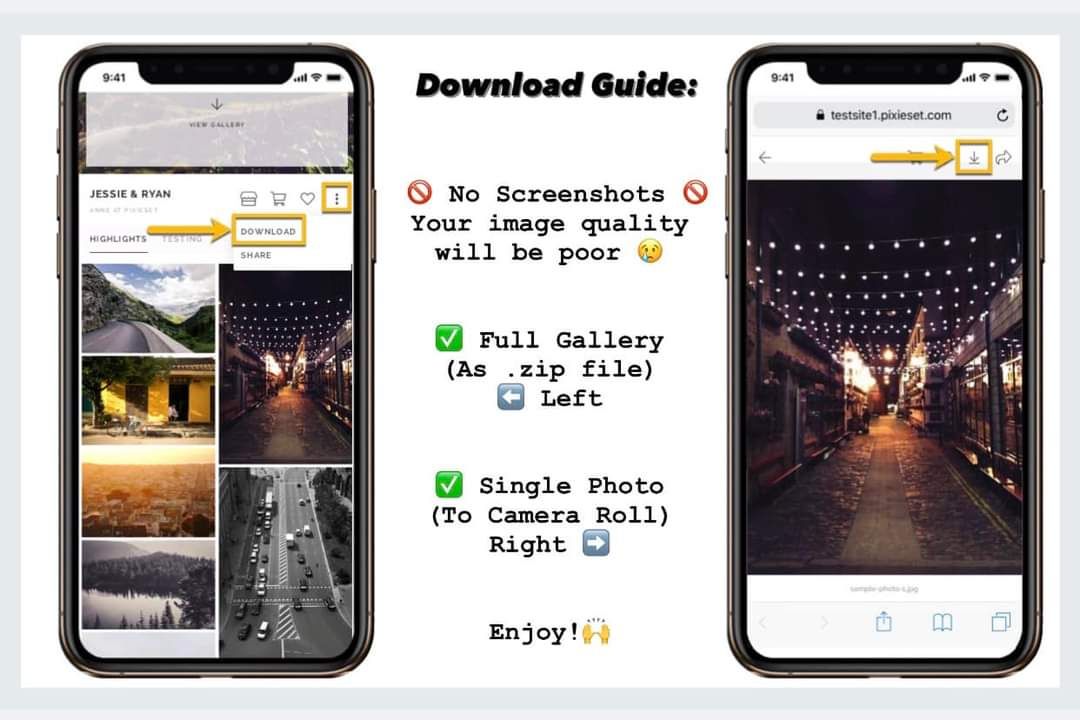
You may choose to either download the entire gallery from the main screen (this will take a very long time), or click on a particular photo for a single photo download. See photo below for instructions.